

- Rating
- 0.00 star(s)
- Country
- Not Phone Verified
- Multiple Accounts
- 0
How To Make A Cool Steam Profile (Full Guide)
Steam is the leading video game distributor platform in PC. On August last year, it was reported that Steam has 33 million daily active users and 67 million monthly active users. Steam's growth continue to expand especially now that it caters the leading video games in the industry. Majority of the gamers own Steam accounts, having personal profile. The Steam profile displays information about you as a video games owner.
While it doesn't matter very much, Steam profile can also be customized and make it look cool for visitors. If you are new to Steam and want a cool profile, this is your guide. If you're on Steam for a long time and didn't bother to customize your profile, do it right now and highlight your best stuff. This guide will help you on how to make a cool Steam profile.
Pick a Steam Avatar
Lets start with the basic. Steam has a special avatar selection option but to be honest, they are pretty bad. You can choose them, of course. But if you want better ones, you can browse through this page and pick your best bet. Avatars can be anything depending on your preference. You can pick anything you like but I suggest you maintain a size in a square ratio. Also try to pick avatars that will blend in to your Steam profile theme/background.
Examples of good profile backgrounds:





Level Up Your Steam Account
Now that you have chose an avatar, the next step you want to do is to level up your Steam account. The only good thing you can do to make your Steam profile cooler with your low-level account is to add background. I suggest you level up your Steam to at least level 10 to unlock one "Showcase Slot" where you can showcase things like favorite game, inventory, artworks, screenshots, achievements, and others. There are many ways to do this but the easiest way is to collect trading cards and craft badges.
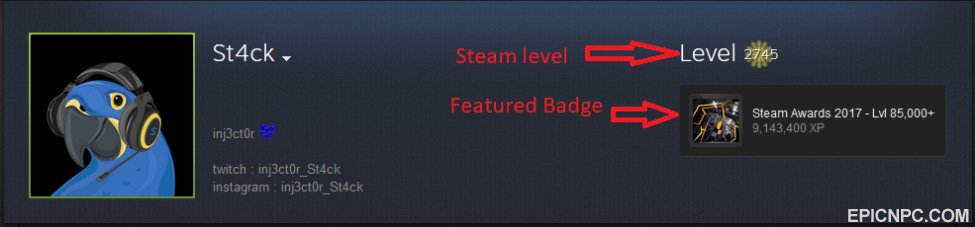
To level up your Steam account by crafting badges, go to your profile and click 'Badges' on the top-right panel. There you can see all your games with trading cards. Now what you want to do is choose a game you want to make a Badge for then collect the trading cards to complete the set. You can get trading cards by trading form your friends' or buying from the community market. Don't worry, most cards are pretty cheap. Craft badges for any of your desired game until you reach level 10, but it's to stick on one game until you reach the max level of badge which is level 5. Now keep in mind that whatever badge you craft, you can choose to feature it on your Steam profile as shown in the image above.
Choose Your Featured Showcase
You have finally unlocked the Showcase option on your Steam account. Go to your Profile then click Edit Profile under the featured badge, scroll down until you find the "Featured Showcase". Here, you can choose different options to be featured on your profile from favorite video game to rarest achievements, even customized info box and artwork. For Custom Info Box, you can put quotes, stylish emoticons, welcome message, or PC specs. If you want a cool one, you can visit this page and copy free Info Box templates.
You can choose more than one showcase depending on your Steam level: 10-19 = 1 showcase, 20-29 = 2 showcase, 30-39 = 3 showcase, etc. Personally, I prefer the Artwork Showcase on my profile with a gif image. Here is the step-by-step guide on how to upload artworks on Steam:
1. Navigate to the Artwork section by clicking the 'Artwork' on the right-side panel of your profile.
2. Click the 'Upload Artwork' button then choose then choose the game. If your artwork is not related to any game, click 'Not game specific'.
3. Fill up the blank sections and don't forget to set it on 'public' if you want to showcase it.
4. Choose Save and Continue and you're good to go. You can now showcase your artwork and feature it on your Steam profile.
(Note: Be careful with uploading images and make sure you won't get in trouble regarding copyright and ownership.)
Setup Steam Background
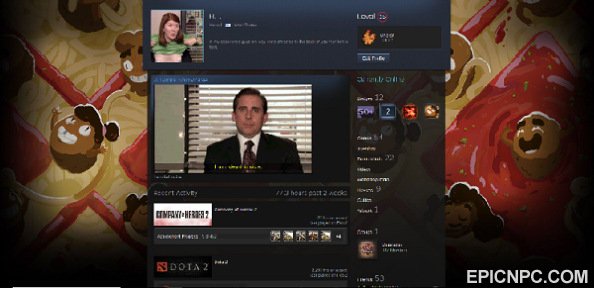
Finally for your Steam background, you can choose whatever you want but try to match it with your avatar. At Steam level 10, it is guaranteed that you already have a profile background in your inventory. You can use it if you like and if you don't, you can always browse the Steam market. Most of the profile backgrounds are pretty cheap and very affordable. This website lets you view steam background without clicking one-by-one as you do in the market. Pick the one you like the most and set it as your Steam background! Below are the screenshots I made from my own Steam account using this simple guide.
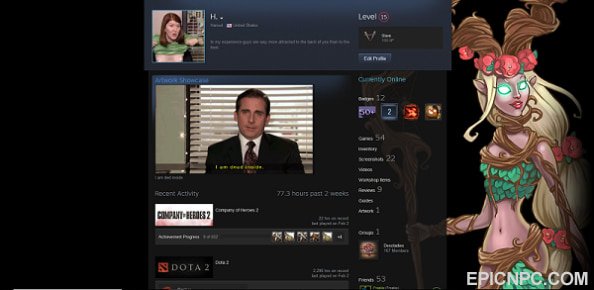
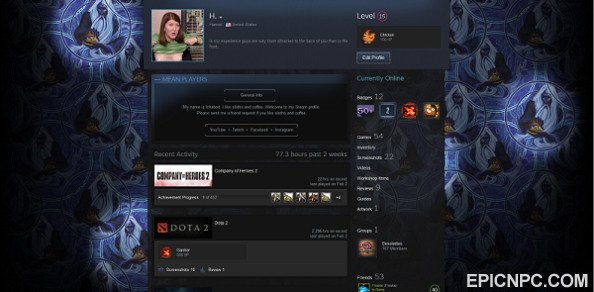
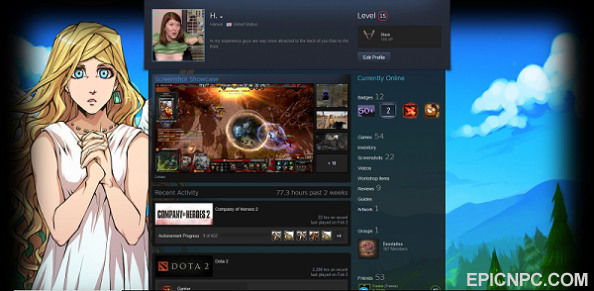
Now if you're still not contented of how it looks, there's a more advanced and more artistic way of setting up your profile by playing with the Featured Showcase and your Steam background. The idea is that you crop parts of your Steam background and upload it as an Artwork/Screenshot so the whole thing will look transparent. It's called 'Background Showcase'. I applied this style to my Steam account and it looks like this:
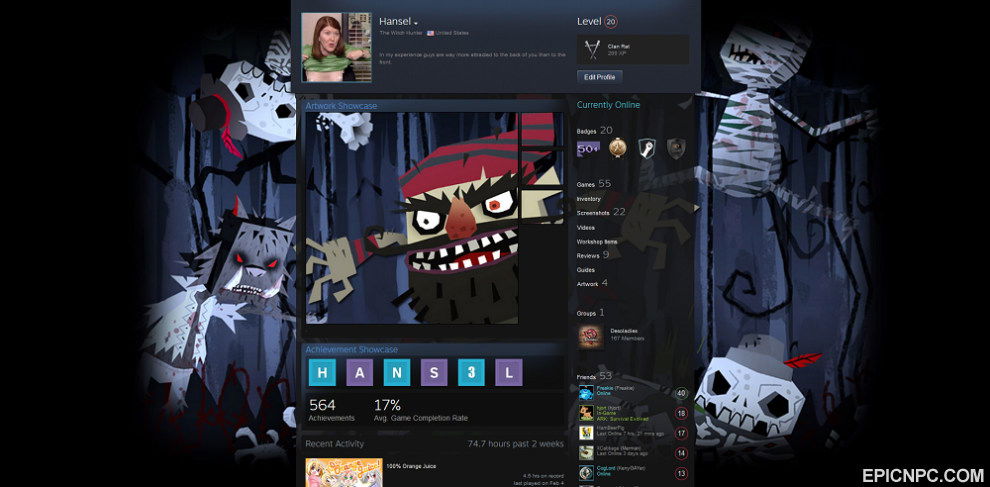
Basically, you use a photo editor like Photoshop to do this. Making this isn't easy and you have to choose a perfect background for this to work because some backgrounds have black sections in the middle part. This is a long method but thanks to TrueCarry and the developers of steam.design, this process isn't hard anymore. You can give your Steam profile its full glory by using steam.design, just login thru your Steam account and follow the procedures then you're all good to show off your Steam!
Bonus: As you can see, I leveled up my account to level 20 so I can now feature two showcases. For the Achievement showcase, you can make up words by unlocking achievements in this game. You also edit the biggest frame in the showcase as a gif and add special effect for more fun!
Steam is the leading video game distributor platform in PC. On August last year, it was reported that Steam has 33 million daily active users and 67 million monthly active users. Steam's growth continue to expand especially now that it caters the leading video games in the industry. Majority of the gamers own Steam accounts, having personal profile. The Steam profile displays information about you as a video games owner.
While it doesn't matter very much, Steam profile can also be customized and make it look cool for visitors. If you are new to Steam and want a cool profile, this is your guide. If you're on Steam for a long time and didn't bother to customize your profile, do it right now and highlight your best stuff. This guide will help you on how to make a cool Steam profile.
Pick a Steam Avatar
Lets start with the basic. Steam has a special avatar selection option but to be honest, they are pretty bad. You can choose them, of course. But if you want better ones, you can browse through this page and pick your best bet. Avatars can be anything depending on your preference. You can pick anything you like but I suggest you maintain a size in a square ratio. Also try to pick avatars that will blend in to your Steam profile theme/background.
Examples of good profile backgrounds:
Level Up Your Steam Account
Now that you have chose an avatar, the next step you want to do is to level up your Steam account. The only good thing you can do to make your Steam profile cooler with your low-level account is to add background. I suggest you level up your Steam to at least level 10 to unlock one "Showcase Slot" where you can showcase things like favorite game, inventory, artworks, screenshots, achievements, and others. There are many ways to do this but the easiest way is to collect trading cards and craft badges.
To level up your Steam account by crafting badges, go to your profile and click 'Badges' on the top-right panel. There you can see all your games with trading cards. Now what you want to do is choose a game you want to make a Badge for then collect the trading cards to complete the set. You can get trading cards by trading form your friends' or buying from the community market. Don't worry, most cards are pretty cheap. Craft badges for any of your desired game until you reach level 10, but it's to stick on one game until you reach the max level of badge which is level 5. Now keep in mind that whatever badge you craft, you can choose to feature it on your Steam profile as shown in the image above.
Choose Your Featured Showcase
You have finally unlocked the Showcase option on your Steam account. Go to your Profile then click Edit Profile under the featured badge, scroll down until you find the "Featured Showcase". Here, you can choose different options to be featured on your profile from favorite video game to rarest achievements, even customized info box and artwork. For Custom Info Box, you can put quotes, stylish emoticons, welcome message, or PC specs. If you want a cool one, you can visit this page and copy free Info Box templates.
You can choose more than one showcase depending on your Steam level: 10-19 = 1 showcase, 20-29 = 2 showcase, 30-39 = 3 showcase, etc. Personally, I prefer the Artwork Showcase on my profile with a gif image. Here is the step-by-step guide on how to upload artworks on Steam:
1. Navigate to the Artwork section by clicking the 'Artwork' on the right-side panel of your profile.
2. Click the 'Upload Artwork' button then choose then choose the game. If your artwork is not related to any game, click 'Not game specific'.
3. Fill up the blank sections and don't forget to set it on 'public' if you want to showcase it.
4. Choose Save and Continue and you're good to go. You can now showcase your artwork and feature it on your Steam profile.
(Note: Be careful with uploading images and make sure you won't get in trouble regarding copyright and ownership.)
Setup Steam Background
Finally for your Steam background, you can choose whatever you want but try to match it with your avatar. At Steam level 10, it is guaranteed that you already have a profile background in your inventory. You can use it if you like and if you don't, you can always browse the Steam market. Most of the profile backgrounds are pretty cheap and very affordable. This website lets you view steam background without clicking one-by-one as you do in the market. Pick the one you like the most and set it as your Steam background! Below are the screenshots I made from my own Steam account using this simple guide.
Now if you're still not contented of how it looks, there's a more advanced and more artistic way of setting up your profile by playing with the Featured Showcase and your Steam background. The idea is that you crop parts of your Steam background and upload it as an Artwork/Screenshot so the whole thing will look transparent. It's called 'Background Showcase'. I applied this style to my Steam account and it looks like this:
Basically, you use a photo editor like Photoshop to do this. Making this isn't easy and you have to choose a perfect background for this to work because some backgrounds have black sections in the middle part. This is a long method but thanks to TrueCarry and the developers of steam.design, this process isn't hard anymore. You can give your Steam profile its full glory by using steam.design, just login thru your Steam account and follow the procedures then you're all good to show off your Steam!
Bonus: As you can see, I leveled up my account to level 20 so I can now feature two showcases. For the Achievement showcase, you can make up words by unlocking achievements in this game. You also edit the biggest frame in the showcase as a gif and add special effect for more fun!